
Infographic artist Ninian Carter (previously) has shared another step-by-step isometric illustration process, this time of a modular smartphone and its interchangeable internal components.
Check it out at his blog, Graphic Gibbon.
Infographic artist Ninian Carter (previously) has shared another step-by-step isometric illustration process, this time of a modular smartphone and its interchangeable internal components.
Check it out at his blog, Graphic Gibbon.
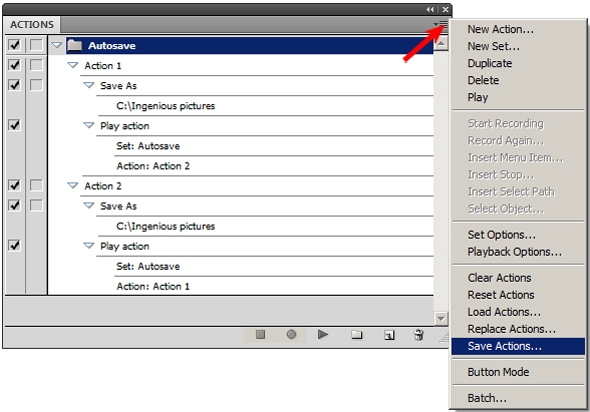
Tired of losing work to Adobe Illustrator’s random and spontaneous crashes? You’re not alone.
This tutorial on Vector Tuts+ will show you how to roll your own Auto-Save function using the Actions palette. It’s really easy and lets you set a custom interval and name & location for the auto-save file. So easy, you’ll wonder why Adobe hasn’t added it as a feature.
One caveat is that this workaround means an action is running constantly, and that you can only set one interval for all your actions. This effectively disables your other actions.

I’ve mentioned TinEye in passing before, for protecting your images and your reputation online. TinEye is a reverse image search, meaning you upload or link to an image, and it finds all the places the same image appears online.
Using TinEye periodically on images in your online portfolio can help you find unauthorized usage of your images on other sites. The best course of action from there is up to your discretion—you could ask for a credit line and a link to your site, request they remove the image, demand payment, or file a DMCA Takedown.
But uploading or linking each image from your site to TinEye is tedious and time consuming. And TinEye’s database hasn’t indexed every image on the web (“only” 2.18 billion) which means it might not find all cases of infringement. For a more exhaustive search you’d have to repeat the process on Google Images, the Russian search engine Yandex and the Chinese search engine Baidu.
Instead, you can use browser plugins/extensions such as Who Stole My Pictures for Firefox and RevEye for Chrome to search all of these engines at once. Simply right click on the image and select Search All In Tabs (or something similar). A tab will open to each site showing the results.
Thanks to my pal Chad for the tip!
How do you protect your images online, and how do you deal with infringers? Let me know your opinions in the comments!
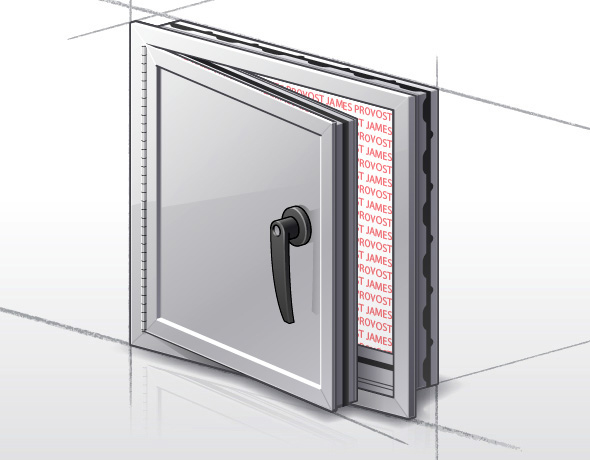
There is little you can do to stop someone who is determined to steal your images. Watermarks are easily removed and website scripts are defeated with a simple screen grab. These attempts only mar your work and make your site difficult to navigate.
In this tutorial I’m not talking about protection from image thiefs, I’m talking about protection from lost opportunities. Times when your images are inevitably downloaded, blogged, cropped, reblogged, faved and saved, and end up orphaned on someone’s hard drive, ffffound, imgfave, tumblr, or email—especially when that person likes your work and would really love to hire you, if they could just figure out where the image came from.
This happens more often than you think; art directors are constantly grabbing images whenever and wherever they see them, but seldom have the time to organize them and make note of where they came from (they should really be using Evernote). Months or even years down the road they might find your image floating in a random folder, uselessly renamed li4tceEqMb1qe.jpg by Tumblr, your name & website address croppped by an ignorant blogger leaving TinEye with no results.
Wouldn’t it be great if you could tuck your name, website and keywords and copyright information into every image to avoid this situation? You can—using Metadata.
Metadata is data about data—like the Created and Modified dates you see attached to every file on your computer. It’s like a little text file appended to files only adding a few bytes to the total file size. You might already be familiar with EXIF metadata added to JPGs by digital cameras, scanners and phones. The metadata I’m talking about in this tutorial is IPTC, but all you need to know is that by the end you’ll be able to embed your name, website, email, phone number, address and copyright into every image—automagically.

Greg Maxson, freelance technical illustrator and co-author of The Complete Technical Illustrator, recently wrote to share his experiences using Twitter as a marketing tool:
I saw Twitter as a sales tool with an immediate and pointed delivery, to be aimed at current and prospective clients. Free, direct, and uncluttered advertising to an audience with a common interest.
Using Twitter he reconnected with Popular Science magazine, a client he worked with regularly between 1994 and 2001. He had tried with hard-copy promos, emails and even voicemails with little response. Then he started following @PopSciGuy, art director Matthew Cokeley:
Each morning Matt would Tweet, “Morning tweeps! Let’s get to work!” After following PopSciGuy on Twitter for a few weeks, I decided to make a bold move. While having lunch at a local restaurant, I replied to one of these morning salutations with “Matt, put me to work in the next issue!”
Now, I certainly wouldn’t recommend this approach to everyone! But my gut told me that this direct, outside-the-norm tactic might just garner a favorable response from the A.D. of a leading science and technology magazine. This approach was destined to go either of two ways: bold, yet smart or, the dumbest move ever.
…and it worked—within two hours, Matthew got in touch with a project for Greg.
For those of you on the fence about it, this is what Twitter is for; Connecting with people with shared interests & goals, in a casual, personable way.
To get you started, you should follow Greg @gregdraws, the hilarious Matthew Cokeley @PopSciGuy, me @jamesprovost, the TechnicalIllustrators.org feed @technicilly and everyone on the the Technical Illustrators list!

I can’t remember how or when I came across this tutorial on drawing hands by illustrator Joumana Medlej, but it’s been an invaluable resource. It neatly summarizes everything I’ve ever learned from anatomy books and life drawing lessons on the construction and depiction of a palm & five digits. The style is clean, concise and technical, and the examples explore the hand’s full range of motion and various viewing angles.
Bookmark it. You’ll find that it’s handy.
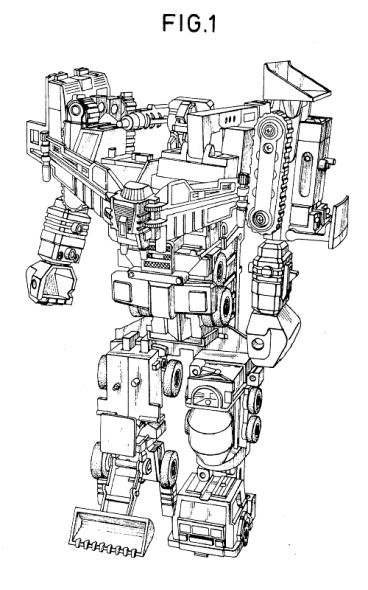
Google Patent Search "Toy Robot"
Looking for some lineart to practice your rendering? Or maybe some plans and elevations to practice a perspective or axonometric drawing system? Check out Google Patent Search, a searchable database of patent applications including the supporting technical drawings.
Quality of the drawings varies, but some digging may save you some drawing if all you really want to do is paint.
[via Boing Boing]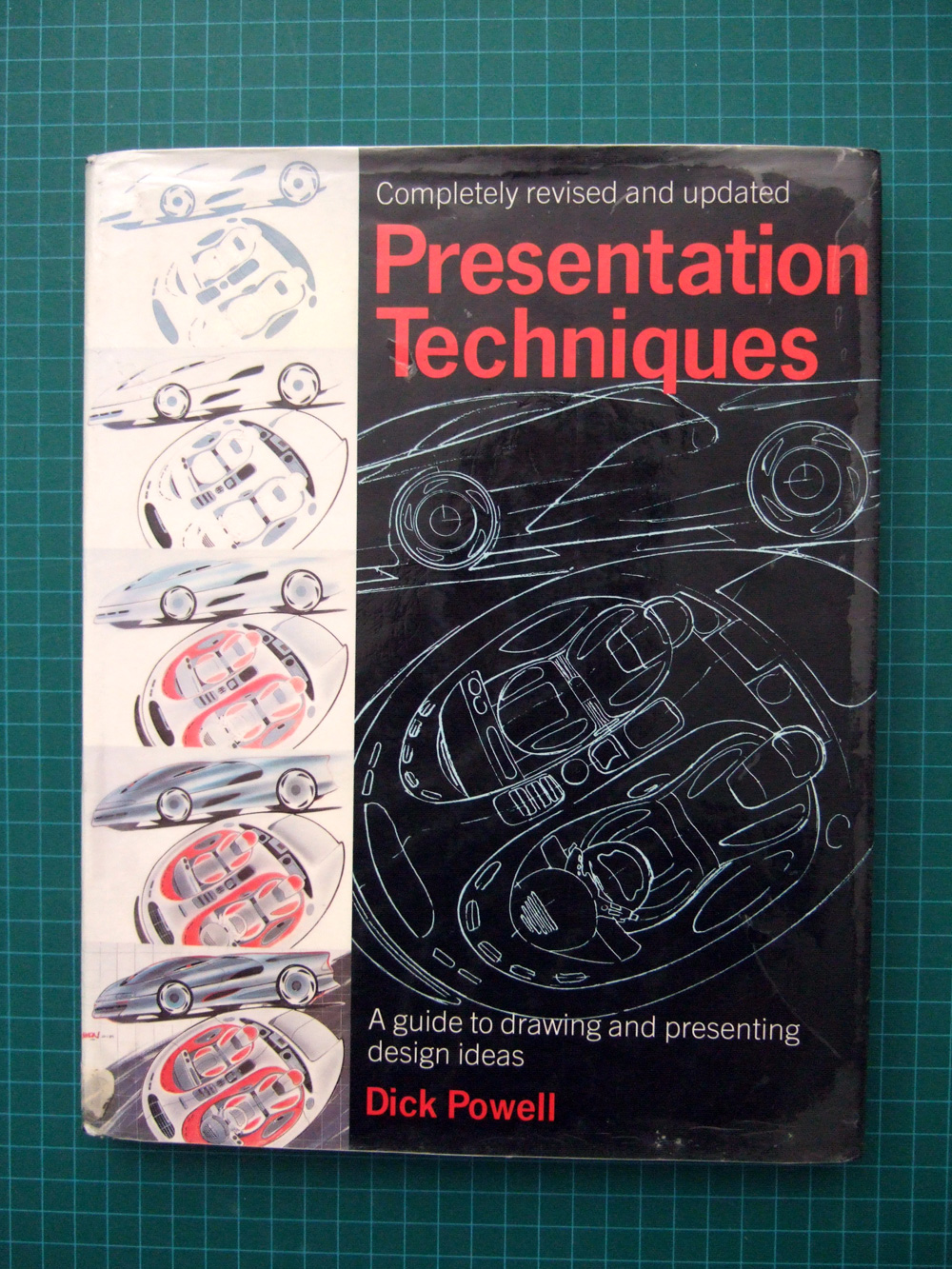
Presentation Techniques by Dick Powell
The second of Marc Gellen‘s book recommendations is Presentation Techniques by Dick Powell, first published in 1985. Whereas Technical Illustration – Techniques and Applications was more of a textbook of tools and techniques, this book is a practical guide to accurately drawing and rendering for the purpose of communicating design ideas. While both books are reminders of how much illustration has changed in 20 years in terms of media and style, I think this book’s techniques are well presented and still relevant today.
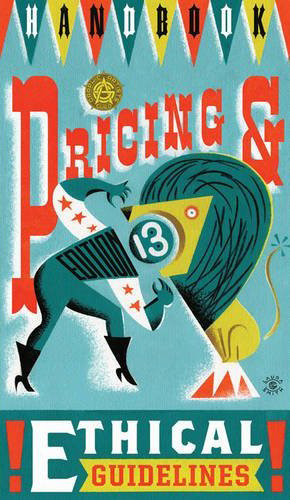
The 13th edition of The Graphic Artist’s Guild Handbook of Pricing and Ethical Guidelines is now available [Amazon]. The 2010 edition includes an updated pricing survey, legal information and sample forms & contracts. As in previous versions, there is a section dedicated to standard trade practices and rates for technical illustration.
If this book isn’t on your shelf now is a great time to get it. If your copy, like mine, is out of date it might be time to update.

Sometimes freelancing can be like solitary confinement. Big projects, tight deadlines, (and if you’re in the Pacific Northwest, terrible weather) can all keep you locked up in the home studio. To ward off cabin fever I like to listen to a small selection of podcasts, some illustration-related, some business-related and others general interest to stay current with the rest of the world.
Sadly, I haven’t found a technical illustration podcast, but here’s my playlist:
Escape From Illustration Island: The Podcast
In-depth interviews with illustrators, artists’ representatives and art directors. Companion to Escape From Illustration Island, a resource portal and illustration community.
Big Illustration Party Time
A conversational podcast about the ins and outs of freelance illustration and cartooning.
Hawk and Squirrel
A brand new podcast searching for its voice. As manic and entertaining as its hosts (and friends of mine), Chad Covino, Juan Solon and Nimit Malavia.
Freelance Radio
Official podcast of FreelanceSwitch.com covering work and life issues of freelancers.
The Monocle Weekly
A mix of discussions, interviews and field reports on world events and culture.
Stuff You Should Know
Official podcast of HowStuffWorks.com, explains how everyday things and not-so-everyday things work.
Have any podcasts to recommend, illustration-related or otherwise? Let us know in the comments!