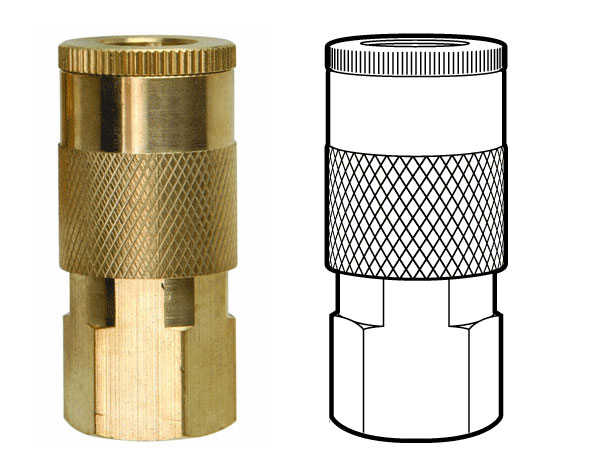
Brett wrote in looking for a way to accomplish a diamond grip pattern wrapping around a cylinder, like the one shown above. It’s easy enough to trace a photo, but what if you didn’t have one, or it wasn’t at the right angle?
The technique I’d use is similar to mapping a label to a can.
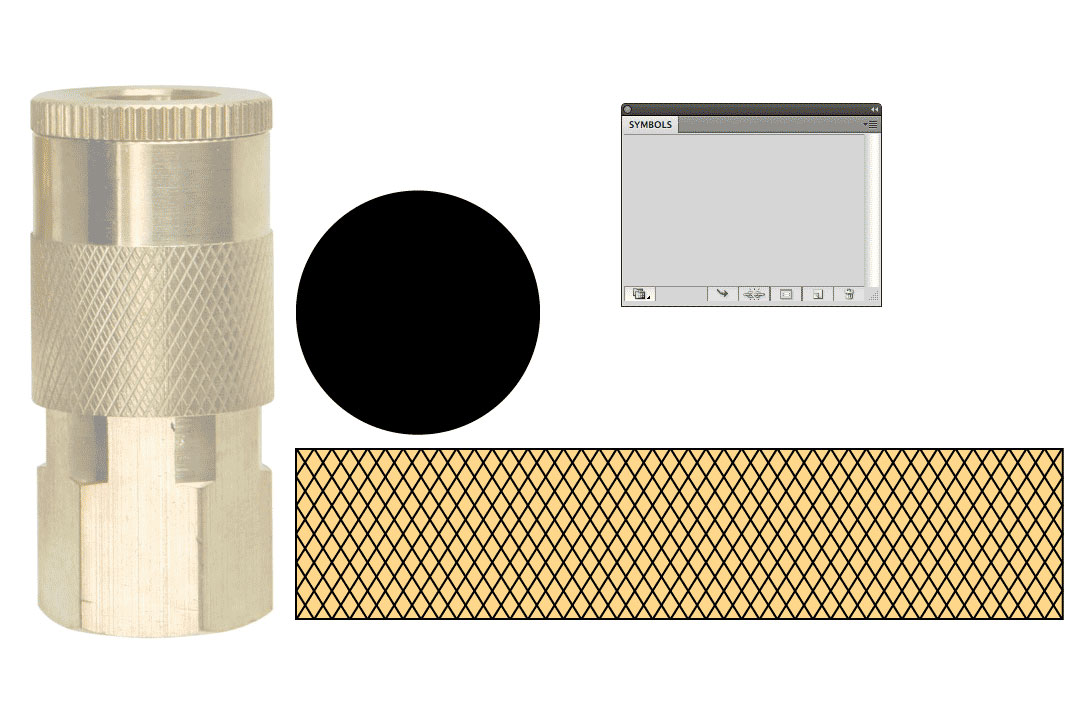
1. Create the artwork you’ll need. The diamond pattern matches the angle and density of the original. The black circle is the same diameter as the reference part, and is filled with no stroke.
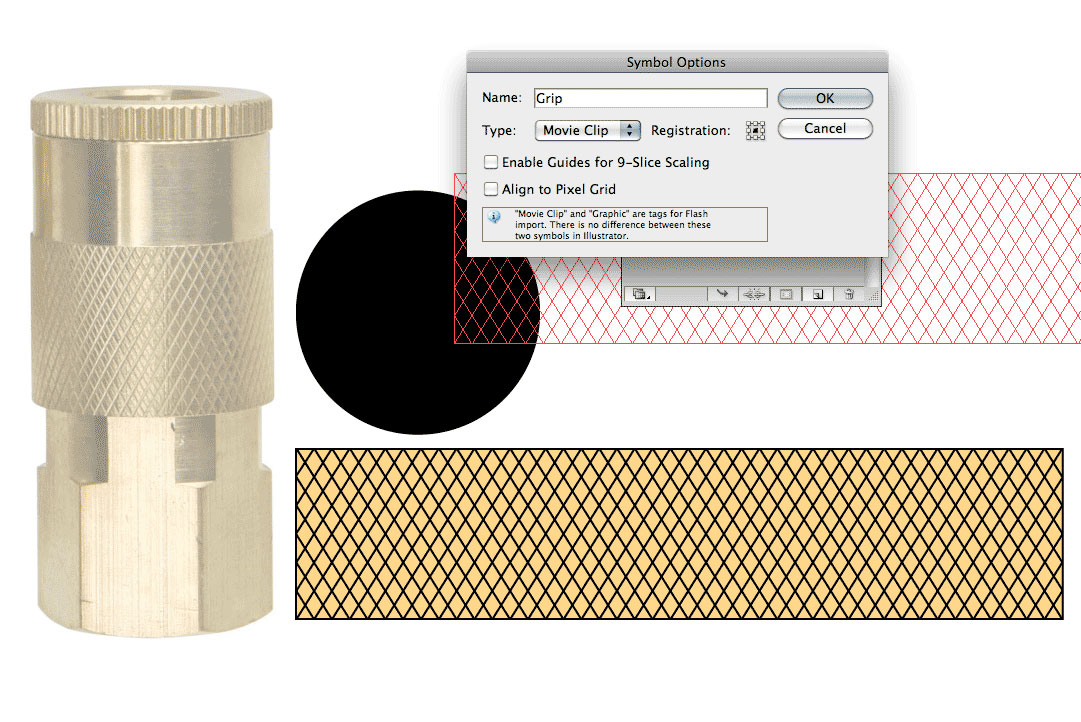
2. Make the pattern a symbol. Drag the pattern into the Symbols palette.
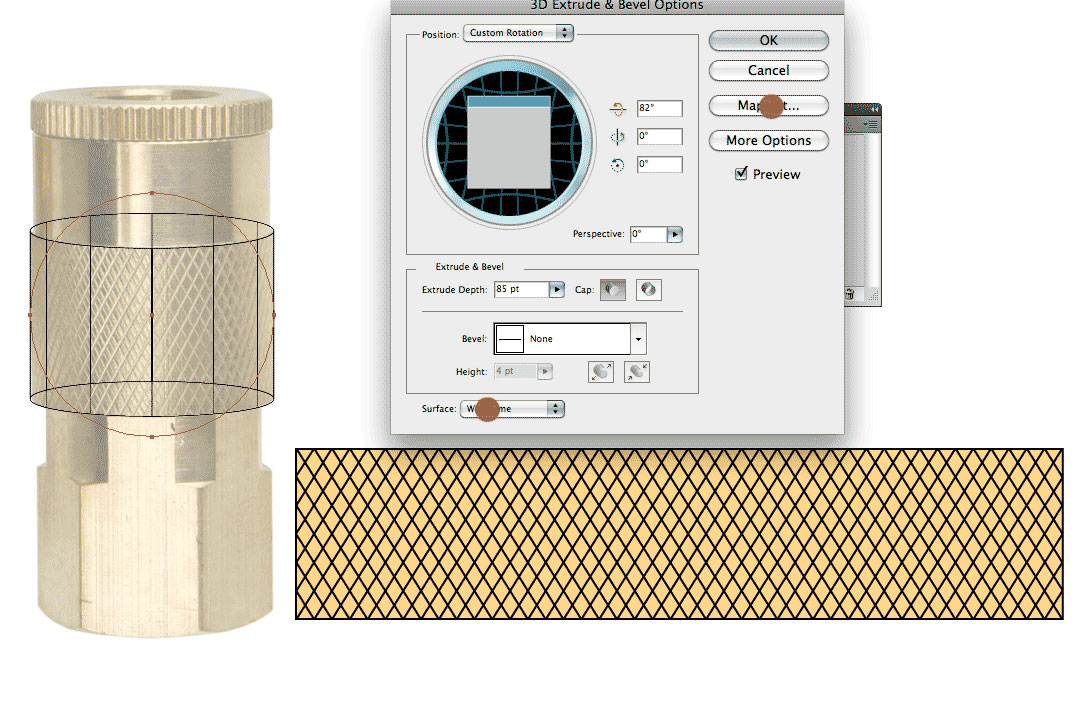
3. Extrude the circle. Go to Effects > 3D > Extrude & Bevel. Click the Surface dropdown at the bottom and select Wireframe. This will help you orient the cylinder to the desired angle. I usually start by entering 0° for all the rotation angles, then rotating one axis at a time by grabbing the edges of the preview cube.
You may need to reposition your cylinder to line up better with a reference image. To do this, Click OK, move the cylinder as needed, then open your Appearance pallete and double click on the 3D Extrude & Bevel item. You may need to turn Preview back on.
When you’re happy with your geometry, click Map Art…
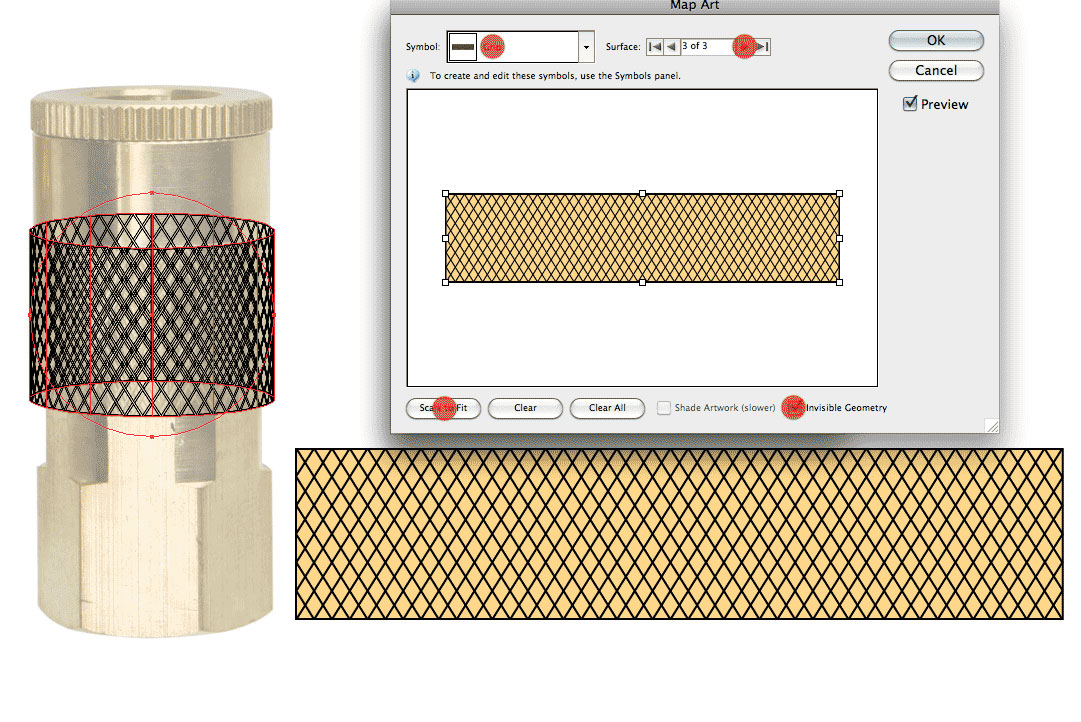
4. Map Art. Click through the Surfaces to find the rectangular side surface. Then select your pattern from the Symbol drop down. Next, select Scale To Fit at the bottom and check off Invisible Geometry. Click OK.

5. Change Surface to Flat Shading. Click OK. You can now edit the artwork as needed by going to Object > Expand Appearance. In my example, I changed the yellow fill to white, then drew the rest of the lineart on another layer.
Have a common problem in Illustrator? Let us know in the comments, or email it to suggest@technicalillustrators.org!

That’s a really simple, yet extremely helpful tutorial, James. Thanks for the post!
Ahhh clever! I wish I had thought of this a month ago, it would have saved me a lot of time! Good to know.
Only the back one quarter of the symbol is showing up in the cylinder the after mapping the art around the extrude. What might be my mistake?
@Matt Make sure you hit Scale To Fit on the Map Art dialog.
Occasionally though, Illustrator will fail to map onto some of the geometry. Try going back to the 3D Extrude & Bevel Options dialog and tweak one of the angle values by 1° with Preview turned on. Sometimes that resolves the error.
An alternative for quickly producing this effect without the 3d tool: Draw a curved line like a squished S… ie start with a point, drag handle to the right, click somewhere to the right and above of the first point.
Duplicate the line some space to the right and blend the 2 lines. Duplicate the blend and flip it vertical. Can then play with the blend steps and spacing to get different size diamonds etc!
This was perfect. Works great for wrapping beer labels around a can. Just use a pre-existing can render for the top and bottom. Play with perspective to make it right.
Hey, we offer you e-commerce business to next level with our robotic
fulfillment center. We pick, pack and ship automatically with highest
efficiency and care. I would be happy to contact you and give you more details .