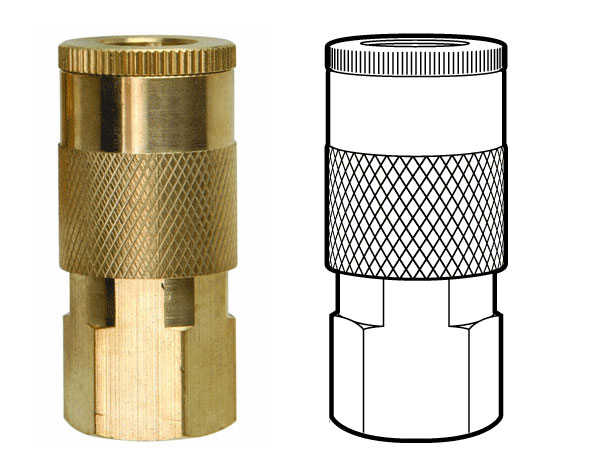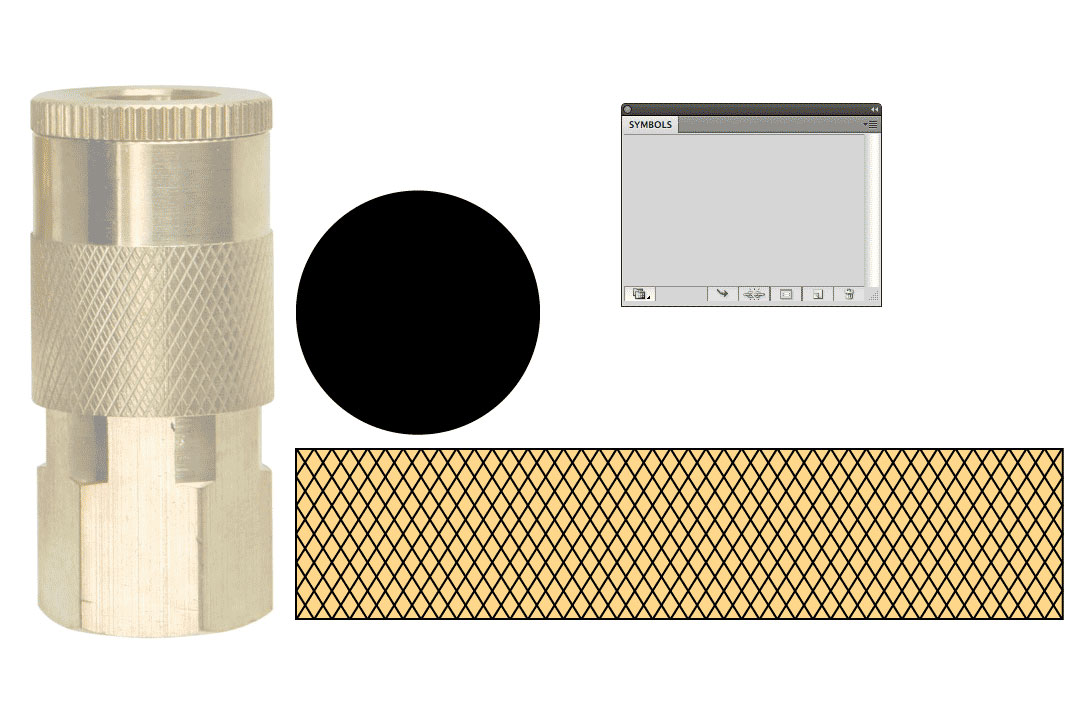
Brett wrote in looking for a way to accomplish a diamond grip pattern wrapping around a cylinder, like the one shown above. It’s easy enough to trace a photo, but what if you didn’t have one, or it wasn’t at the right angle?
1. Create the artwork you’ll need. The diamond pattern matches the angle and density of the original. The black circle is the same diameter as the reference part, and is filled with no stroke.
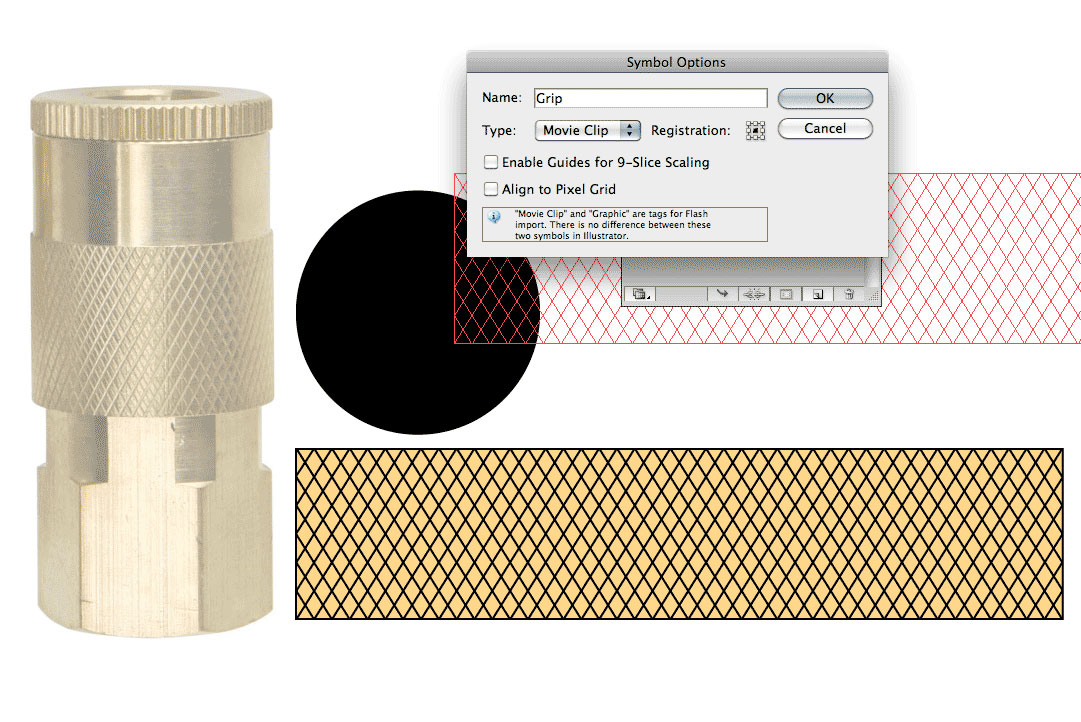
2. Make the pattern a symbol. Drag the pattern into the Symbols palette.
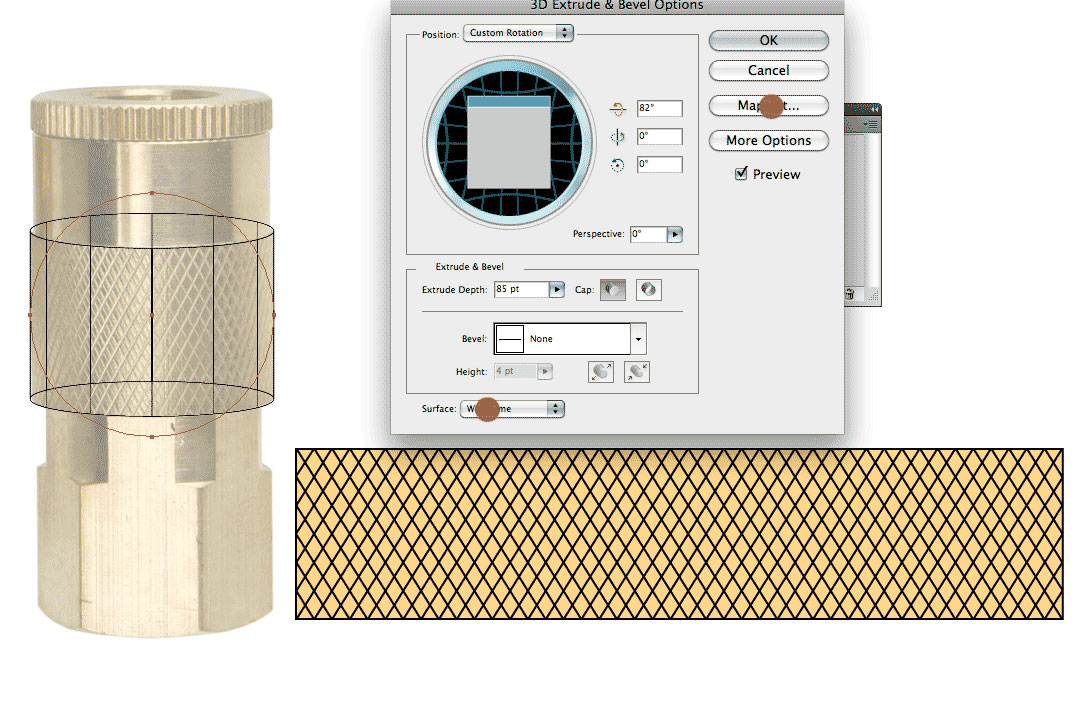
3. Extrude the circle. Go to Effects > 3D > Extrude & Bevel. Click the Surface dropdown at the bottom and select Wireframe. This will help you orient the cylinder to the desired angle. I usually start by entering 0° for all the rotation angles, then rotating one axis at a time by grabbing the edges of the preview cube.
You may need to reposition your cylinder to line up better with a reference image. To do this, Click OK, move the cylinder as needed, then open your Appearance pallete and double click on the 3D Extrude & Bevel item. You may need to turn Preview back on.
When you’re happy with your geometry, click Map Art…
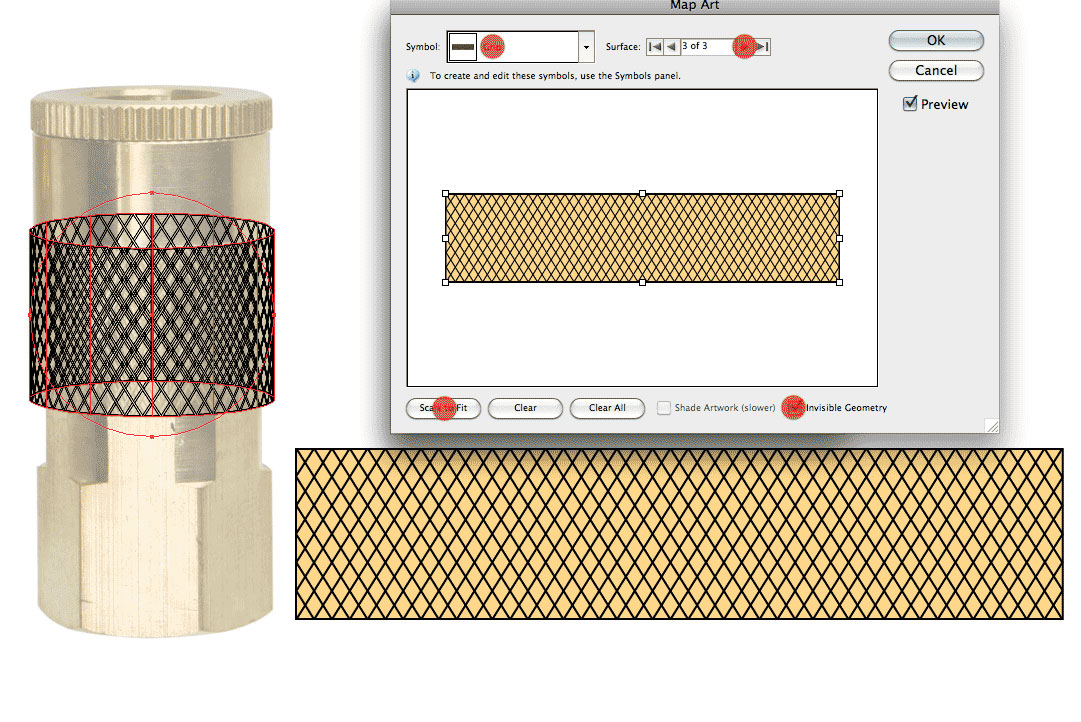
4. Map Art. Click through the Surfaces to find the rectangular side surface. Then select your pattern from the Symbol drop down. Next, select Scale To Fit at the bottom and check off Invisible Geometry. Click OK.
5. Change Surface to Flat Shading. Click OK. You can now edit the artwork as needed by going to Object > Expand Appearance. In my example, I changed the yellow fill to white, then drew the rest of the lineart on another layer.
Often the most difficult and time consuming part of technical illustration is finding good reference material. While the internet serves up a limitless selection of images, finding one at an appropriate size, fidelity, viewing angle, and unambiguous copyright status, can be next to impossible.
Sometimes it’s much quicker to simply step away from your desk and go snap a photo of whatever you need. Of course, this isn’t practical if you’re drawing a submarine or a satellite, but it can help if you’re trying to fill a scene with commonplace objects.
Where it gets tricky is matching your photo reference up to the rest of the drawing. We’ve all seen drawings badly traced and assembled together from photos taken at different angles. We can recognize this because we understand perspective. So let’s apply that understanding when shooting our own photos.
Iaroslav Lazunov has a great tutorial over on Astute Graphics’ blog on how to create proper gears in Adobe Illustrator. This tutorial makes use of the plugin VectorScribe, but the same results could be achieved with Illustrator’s default tools with some extra steps.
An important distinction is made here: Proper Gear. Most gears that show up in illustrations and icons would not work with any efficiency and some would just shred to bits. While you wouldn’t necessarily 3D print these and use them, you’ll end up with something that at least looks like it would work (unlike the failboat below).
Also included in the tutorial is a way to accomplish conical gradients in Illustrator (unfortunately the technique is extremely convoluted).
There is little you can do to stop someone who is determined to steal your images. Watermarks are easily removed and website scripts are defeated with a simple screen grab. These attempts only mar your work and make your site difficult to navigate.
In this tutorial I’m not talking about protection from image thiefs, I’m talking about protection from lost opportunities. Times when your images are inevitably downloaded, blogged, cropped, reblogged, faved and saved, and end up orphaned on someone’s hard drive, ffffound, imgfave, tumblr, or email—especially when that person likes your work and would really love to hire you, if they could just figure out where the image came from.
This happens more often than you think; art directors are constantly grabbing images whenever and wherever they see them, but seldom have the time to organize them and make note of where they came from (they should really be using Evernote). Months or even years down the road they might find your image floating in a random folder, uselessly renamed li4tceEqMb1qe.jpg by Tumblr, your name & website address croppped by an ignorant blogger leaving TinEye with no results.
Wouldn’t it be great if you could tuck your name, website and keywords and copyright information into every image to avoid this situation? You can—using Metadata.
Metadata is data about data—like the Created and Modified dates you see attached to every file on your computer. It’s like a little text file appended to files only adding a few bytes to the total file size. You might already be familiar with EXIF metadata added to JPGs by digital cameras, scanners and phones. The metadata I’m talking about in this tutorial is IPTC, but all you need to know is that by the end you’ll be able to embed your name, website, email, phone number, address and copyright into every image—automagically.
This is a very quick and easy tutorial for creating an isometric grid in Adobe Illustrator, which you can then either work directly over in Illustrator or print out for freehand sketching.
If you want to skip the tutorial and get working in isometric right away, download these completed grids in PDF format, ready for printing or import into Illustrator or Corel:
If your new year’s resolution was to learn how to bring your illustrations to life with motion and interactivity, you are in luck. Below I’ve gathered some resources, tutorials and inspiration to get you started on your journey.
Adobe Flash
For better or for worse, Flash has been around for 15 years. While rival technologies may be digging its grave, Flash remains the most intuitive animation tool for users of Adobe Illustrator — and 15 years worth of online tutorials and forum discussions make for an easy learning curve.
Both made by Adobe, Flash and Illustrator work pretty well together (although, not as well as you might expect). Like Illustrator, Flash is vector based and can import .AI vector artwork along with bitmaps and video files. Illustrator can export .SWFs for Flash, and later versions (AI CS3+) can even include symbols, animation clips and dynamic objects.
In addition to animation tools, Flash also has a programming language called ActionScript (AS) with which you can make your animations interactive. There are three versions of ActionScript (AS1, AS2, AS3) which are not cross-compatible, each more esoteric than the last. I find AS2 to be the right mix of natural-language programming and breadth of possibilities, and seems to have the most tutorials too.
AE is a beast of a program; it’s like the Photoshop of video. It’s used for 2D & 3D motion graphics, editing, compositing, post-production and special effects for video, TV and film. And like Photoshop it can be used to create entire projects from start to finish, but its real strength is in manipulating and compositing assets made by other means, such as Illustrator and 3D applications.
AE takes just about anything you can throw at it — AI, EPS, PSD, PNG, PDF, MP3, WAV, AVI, MOV, even camera movements from popular 3D software — and spits out a wide variety of video formats.
Although AE does allow you to control animations and effects with scripting, it only exports video meaning no interactivity with AE alone.
Ai to Canvas is a plug-in for Adobe Illustrator produced by developers at Microsoft. It enables Illustrator to export vector and bitmap artwork directly to a new HTML5 web element called a Canvas. Canvas-enabled browsers (latest versions of Firefox, Chrome, Safari, Opera) can then interpret and render that content for viewers.
The advantage over simply exporting images for the web is that artwork in a Canvas element remains vectored and can be animated and manipulated with JavaScript code. In fact, Ai to Canvas allows rudimentary animation simply by renaming your layers.
The fact that Canvas doesn’t rely on a browser plug-in (like Flash does) means that your animation & interactivity will run regardless of the viewer’s installed components. This means content presented in a Canvas element are viewable on Apple’s iPad, iPhone and iPod Touch, since they disallow browser plug-ins. I made this HTML5 demo to try it out.
You don’t necessarily need a fancy program to create rich animated and interactive media. Photoshop is equipped with an animation palette suitable for creating flipbook type animations; Here’s a primer.
Failing that, try to be creative with the tools you have. Here are two web pages that feel animated, using only static assets:
Following up on the previously shared How to Draw Hands, it seems illustrator Joumana Medlej has a slew of tutorials including Human Anatomy, Feet, Movement & Flexibility and more! Joumana has even compiled them into a book for off-line reference. Really great summary of anatomy and life drawing executed in clean, confident lines that make it very applicable for technical illustrators.
I can’t remember how or when I came across this tutorial on drawing hands by illustrator Joumana Medlej, but it’s been an invaluable resource. It neatly summarizes everything I’ve ever learned from anatomy books and life drawing lessons on the construction and depiction of a palm & five digits. The style is clean, concise and technical, and the examples explore the hand’s full range of motion and various viewing angles.
This came to me via a guy at my work. You can download the psd files and see how they were created. There are some nice looking files on here, tons of buttons, icons, web stuff and some nice examples of creating illustrations in photoshop. Dig in people.